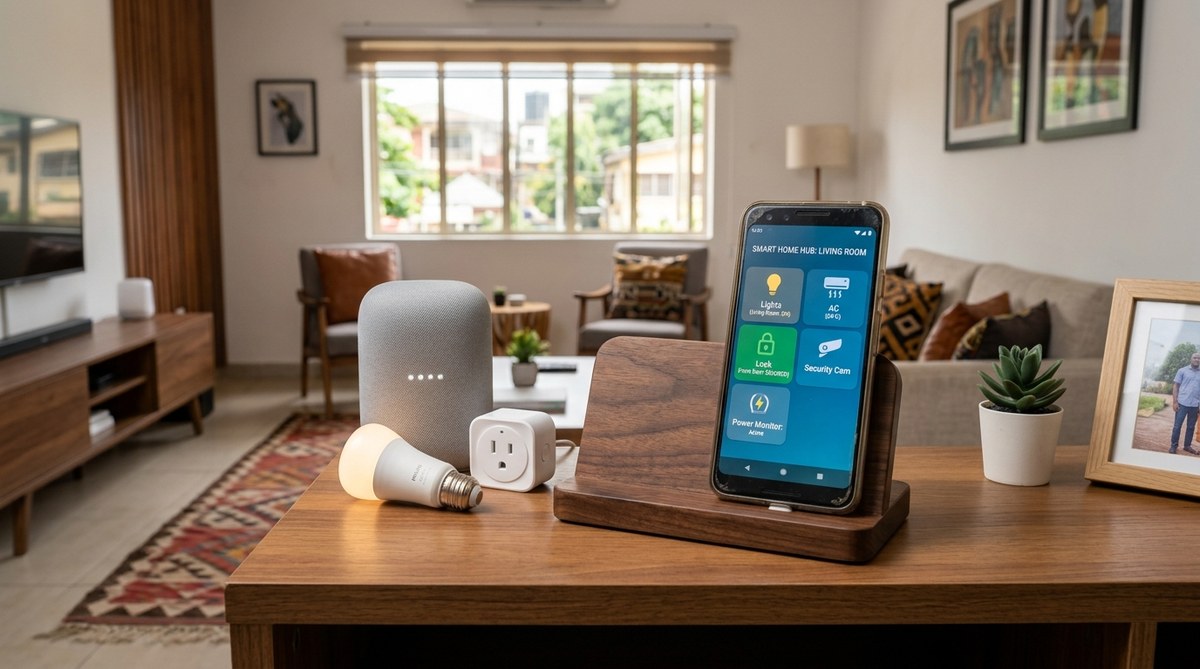
You have an old smartphone sitting in a drawer. Maybe the screen has a hairline crack. Maybe the battery drains before lunch. Or maybe you just upgraded to a newer model and kept the old one as a backup. In many parts of Africa, that device still holds real value. Instead of letting it collect dust, you can turn that old smartphone into a smart home hub that controls lights, monitors security, and manages your daily routine. Commercial hubs like Amazon Echo or Google Nest cost money and often require a stable internet connection and a credit card. Your old phone needs none of that. It already has a screen, a speaker, a microphone, and Wi-Fi. With the right setup, it becomes the brain of your home.
Repurposing an old smartphone as a smart home hub saves money, cuts e-waste, and gives you full control without monthly fees. With free apps for automation, security cameras, and voice control, you can build a system that rivals commercial hubs. The process takes under an hour and works even in areas with patchy power or internet.
Why Your Old Phone Is Perfect for the Job
Most people think they need a dedicated device to run their smart home. The truth is, any Android or iOS phone from the last five years has enough processing power to handle basic automation. The screen can show live camera feeds, weather updates, and control panels. The microphone can listen for voice commands. The speaker can announce alerts or play music. And the battery acts as a built-in uninterruptible power supply during load shedding.
In 2026, African households face unique challenges. Power outages are still common in many regions. Internet data can be expensive. Imported smart home gear often carries high taxes. Using a device you already own eliminates all these barriers. You avoid the cost of a new hub. You avoid the frustration of a device that stops working when the power goes out. And you keep electronic waste out of landfills.
What You Can Control with Your Phone Hub
Before you start, it helps to know what is possible. Here is a list of common tasks your old phone can handle:
- Turn lights on and off using Wi-Fi plugs or smart bulbs
- Stream live video from a cheap IP camera or use the phone itself as a camera
- Play white noise, music, or alarms on a schedule
- Display a dashboard with weather, calendar, and news
- Send notifications when motion is detected
- Act as a bedside alarm that turns on the lights gradually
- Control appliances like fans, heaters, and coffee makers via smart sockets
Many of these tasks use free apps that work over local Wi-Fi. You do not need a cloud subscription or a permanent internet connection. The phone talks directly to your devices inside your home network.
Step-by-Step: How to Set It Up
The process is simpler than you might expect. Follow these steps to turn your old smartphone into a smart home hub.
Step 1: Factory reset the phone. Remove all personal data. Sign out of every account. This gives you a clean slate and prevents old apps from slowing things down.
Step 2: Install a home automation app. Free options like Home Assistant, openHAB, or the Smart Life app work well. Home Assistant is the most powerful but requires some configuration. Smart Life is easier and connects to many affordable Wi-Fi plugs and bulbs sold in African markets.
Step 3: Connect your smart devices. Plug in a Wi-Fi smart plug. Open the app on your phone. Follow the pairing instructions. Most devices use a simple scan and connect method. Name each device clearly, like “Living Room Lamp” or “Fan.”
Step 4: Set up automations. In the app, create rules. For example, “Turn on the porch light at sunset” or “Send a notification when the front door sensor opens.” Use the phone’s built-in sensors if the app supports them. The phone’s light sensor can trigger a night mode. The microphone can listen for a door knock.
Step 5: Mount the phone. Place it in a central location. A kitchen counter, a hallway wall mount, or a bedside table works well. Keep it plugged into power so the battery stays topped up. If you mount it on the wall, use a cheap phone holder or a magnetic car mount.
Step 6: Add voice control (optional). Install a voice assistant app like Mycroft or use the built-in assistant on Android. Train it to recognize basic commands. Say “Turn off the kitchen light” and watch it happen.
Common Mistakes and How to Avoid Them
Even a simple project can go wrong without the right approach. The table below shows frequent mistakes and the correct fix.
| Mistake | Why It Happens | The Fix |
|---|---|---|
| Phone overheats when left plugged in 24/7 | Battery charging constantly generates heat | Use a smart charger that stops at 80%, or remove the battery and run the phone on direct power |
| Apps crash after a few days | Too many background processes or low storage | Uninstall unused apps. Disable animations. Keep storage under 70% full |
| Wi-Fi disconnects during load shedding | Router loses power and phone fails to reconnect | Set the phone to reconnect automatically. Use a UPS for the router, or tether the phone to a mobile hotspot |
| Voice commands fail in noisy rooms | Microphone picks up background sounds | Place the phone closer to where you sit. Use a directional mic or a wired headset |
| Screen stays on all night | No automatic dimming or sleep mode | Use an app like Night Light for Android or the built-in blue light filter. Set screen timeout to 30 seconds |
| Smart devices do not respond | Phone and devices on different Wi-Fi bands | Make sure both are on the same 2.4 GHz network. Some cheap plugs do not support 5 GHz |
“The biggest mistake people make is trying to do too much at once. Start with one light and one plug. Get that working reliably. Then add one more device. A stable system beats a complex one every time.” — DIY smart home builder in Nairobi
Making It Work in African Conditions
Your setup needs to handle real world conditions. Here are practical tips for common scenarios.
During load shedding. Keep the phone plugged into a power bank. Most phones can run for hours on a 10,000 mAh power bank. Set the phone to low power mode. Turn off Bluetooth and GPS. Reduce screen brightness. If the power goes out, the hub stays alive.
With limited data. Download all apps and updates over Wi-Fi at night when data is cheaper. Disable automatic updates. Use the hub in local mode so it does not phone home for every command. Many automation apps work entirely offline once configured.
With multiple users. Create a shared dashboard that everyone in the house can see. Mount the phone in a common area. Family members can tap the screen to control devices without needing the app on their own phones.
With older smartphones. A phone from 2018 or 2019 can still run a hub. Stick to lightweight apps. Avoid Home Assistant if the phone has less than 2 GB of RAM. Use Smart Life or Tuya instead. Remove the SIM card to stop the phone from searching for a cellular signal.
Tools and Apps You Will Need
Gather these free or low cost tools before you start.
- Old smartphone (Android or iOS)
- Wi-Fi connection
- Smart plug or smart bulb (look for brands like Sonoff, Kasa, or local Chinese imports)
- Wall mount or stand (optional)
- Power bank (optional, for backup)
- Home automation app (Home Assistant, Smart Life, openHAB, or ActionTiles)
- Voice assistant app (Mycroft, or built-in assistant)
- Camera app (if using the phone as a security cam: Alfred, Manything, or Motion Eye)
Most of these apps are free. The smart plugs cost between $5 and $15 depending on where you buy them. Compare that to a commercial hub that costs $50 to $150, and the savings are clear.
Security and Privacy Considerations
Using an old phone as a hub raises valid concerns. Here is how to protect yourself.
- Update the phone to the latest supported OS version. If the phone no longer receives updates, consider installing a lightweight Linux distribution like Kali Linux for phones or a custom Android ROM
- Change the default password on every smart device
- Keep the hub on a separate Wi-Fi network from your main computer and phone
- Disable remote access unless you need it
- Turn off the camera and microphone when not in use. Some apps let you toggle hardware access
- Use a wired Ethernet adapter if your phone supports it. Wired connections are harder to intercept
If you follow these steps, your hub will be safer than many commercial devices that send data to unknown servers.
When to Upgrade to a Dedicated Hub
Your old phone will handle most tasks, but it has limits. Consider buying a dedicated hub if you need:
- Support for dozens of devices at once
- Complex automations with multiple triggers and conditions
- Integration with Z-Wave or Zigbee devices (your phone lacks the radio chip)
- 24/7 video recording without overheating
- A system that runs independently of a phone battery
Until then, your repurposed phone is more than enough. And if you decide to upgrade, you can repurpose the phone again as a dedicated security camera or a wall mounted calendar display.
Your Next Steps
You now have everything you need to turn an old smartphone into a smart home hub. Start by pulling that device out of the drawer. Charge it fully. Factory reset it. Install one automation app and one smart plug. Test the setup for a week. Add devices slowly. Share the dashboard with your family. Enjoy the satisfaction of building something useful from hardware that others might throw away.
For more ideas on getting the most from your devices, check out our guide on how to extend your smartphone’s battery life in Africa’s harsh climate. And if you are shopping for a new phone to replace the old one, read our list of top 10 budget smartphones dominating the African market in 2026.
Your old phone still has a job to do. Give it that job today.